How To Use
- 1Open Mirrizo on your PC, Laptop, TV, or Any Big Screen via Browser
Open mirrizo.com on the device where you want to view your phone screen — your PC, laptop, TV, or another big-screen device using a web browser.
DO NOT OPEN MIRRIZO ON YOUR MOBILE PHONE. Your mobile phone is the device you will mirror to the bigger screen.Supported browsers: Google Chrome, Brave, Opera desktop, and Microsoft Edge. Other browsers may also work if they support the required browser features, but Firefox is not supported.
- 2Enable Developer Options
Go to Settings → About Phone → tap Build Number 7 times.
- 3Enable USB Debugging
Settings → Developer Options → toggle USB Debugging on.
- 4Connect your device
Connect your Android phone to your PC, laptop, TV, or other big-screen device using a USB cable.
- 5Allow USB Debugging
When your phone asks for USB debugging permission, tap Allow.
- 6Press Connect & Start Mirroring
On the Mirrizo page opened on your PC, laptop, or supported TV browser, click the USB Connect button and start mirroring.
- 7Allow USB Debugging Access
Tap Allow to authorize the USB connection.
🎮 Keyboard & On-Screen Controls
Once connected, enable Controls from the overlay to use your keyboard and mouse directly on the mirrored screen. Use Game Mode for pointer lock and optimized input during gaming sessions.
✦ Edit Layout — Drag, resize, and place on-screen control buttons anywhere on the screen. Arrange them to match your play style, save the layout, and use it anytime for a more comfortable and personalised control setup.
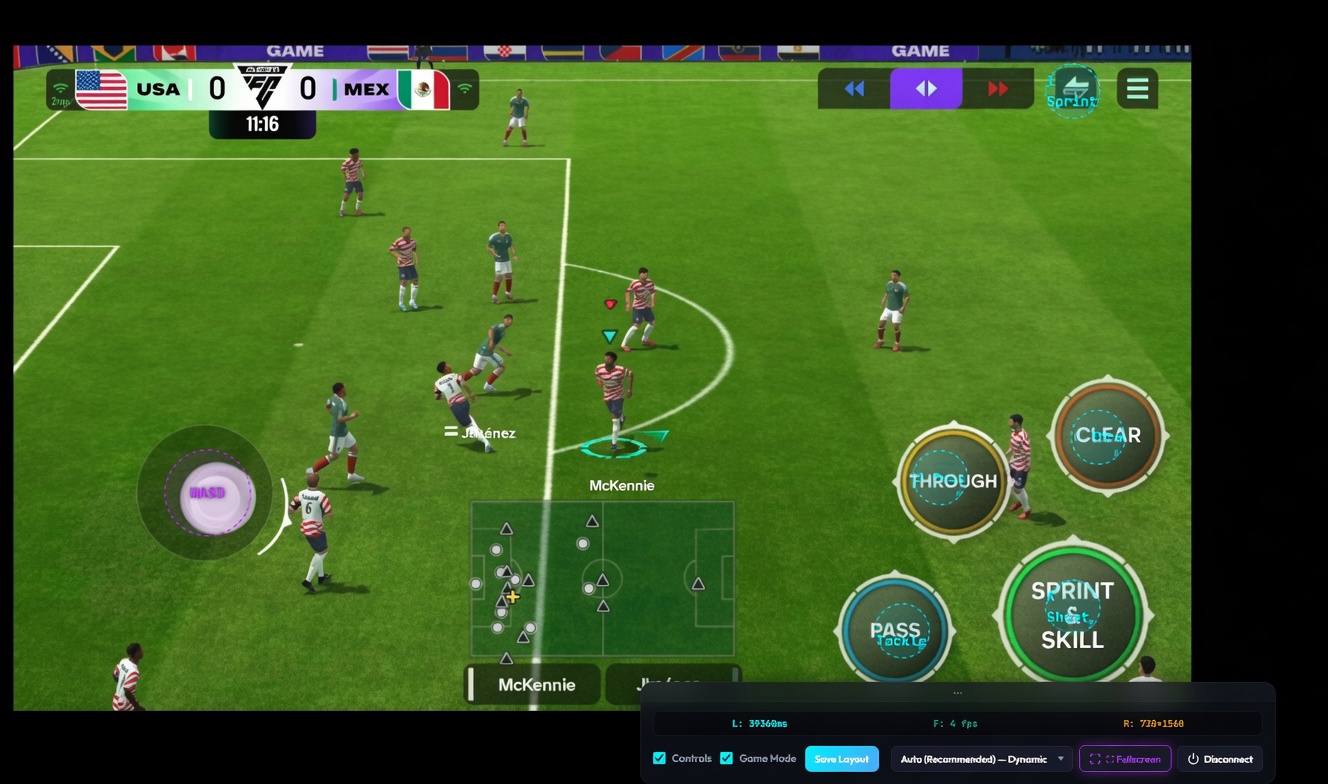
Overview of the keyboard and on-screen control layout.
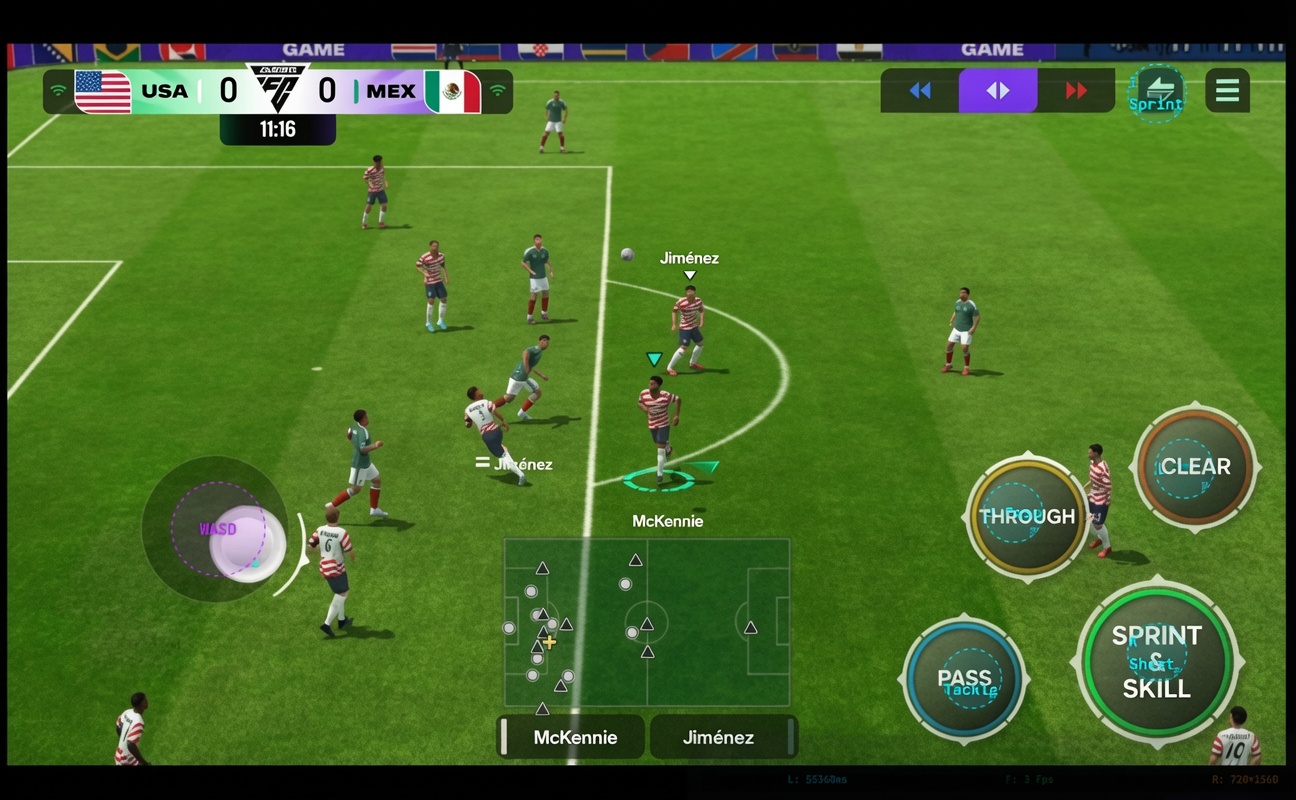
Customize the WASD controls and button positions using Edit Layout.