Professional Mobile
Screen Mirroring
Connect your mobile phone to your PC or laptop with USB, mirror it on a bigger screen, and control it directly in your browser. See How To Use for help.
USB Connection
Recommended for pro-gaming & lowest latency
🔌 Best experience: Use the latest Google Chrome or Opera browser for full WebUSB support.
- 1Open Mirrizo on your PC, Laptop, TV, or Any Big Screen via Browser
Open mirrizo.com on the device where you want to view your phone screen — your PC, laptop, TV, or any big-screen device using a web browser.
DO NOT OPEN MIRRIZO ON YOUR MOBILE PHONE. Your mobile phone is the device you will mirror to the bigger screen. - 2Enable Developer Options
Go to Settings → About Phone → tap Build Number 7 times.
- 3Enable USB Debugging
Settings → Developer Options → toggle USB Debugging on.
- 4Connect your device
Connect your Android phone to your PC, laptop, TV, or other big-screen device using a USB cable.
- 5Allow USB Debugging
When your phone asks for USB debugging permission, tap Allow.
- 6Press Connect & Start Mirroring
On the Mirrizo page opened on your PC, laptop, or supported TV browser, click the USB Connect button and start mirroring.
- 7Allow USB Debugging Access
Tap Allow to authorize the USB connection.
📸 Visual Guide: Enabling USB Debugging
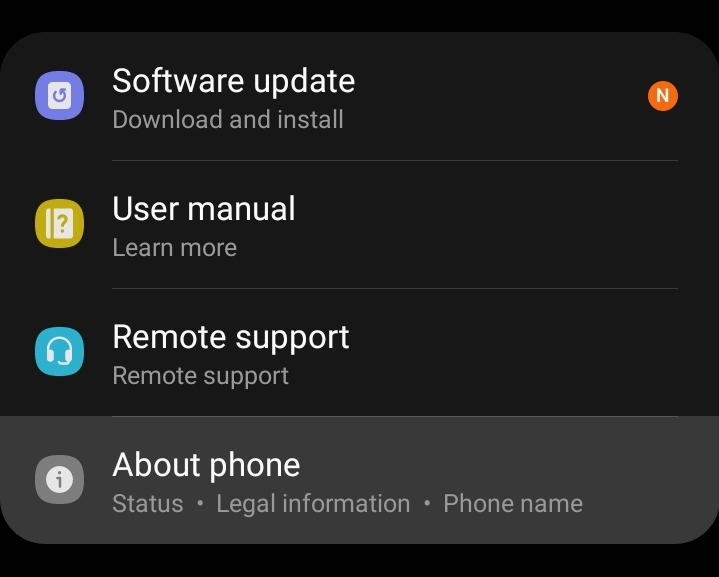
1. Go to Settings → About phone
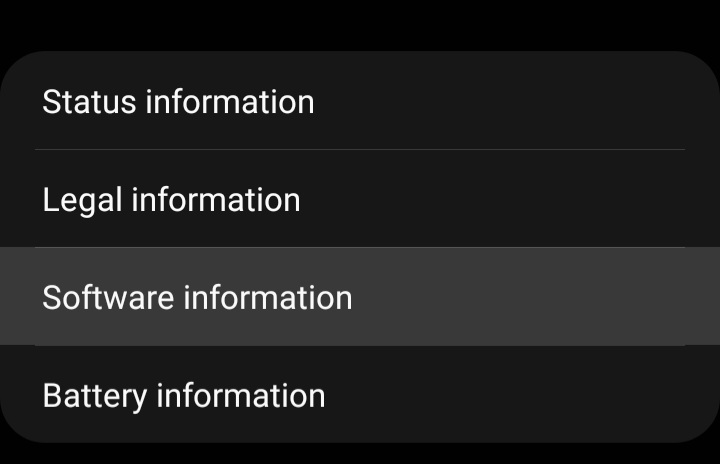
2. Tap Software information
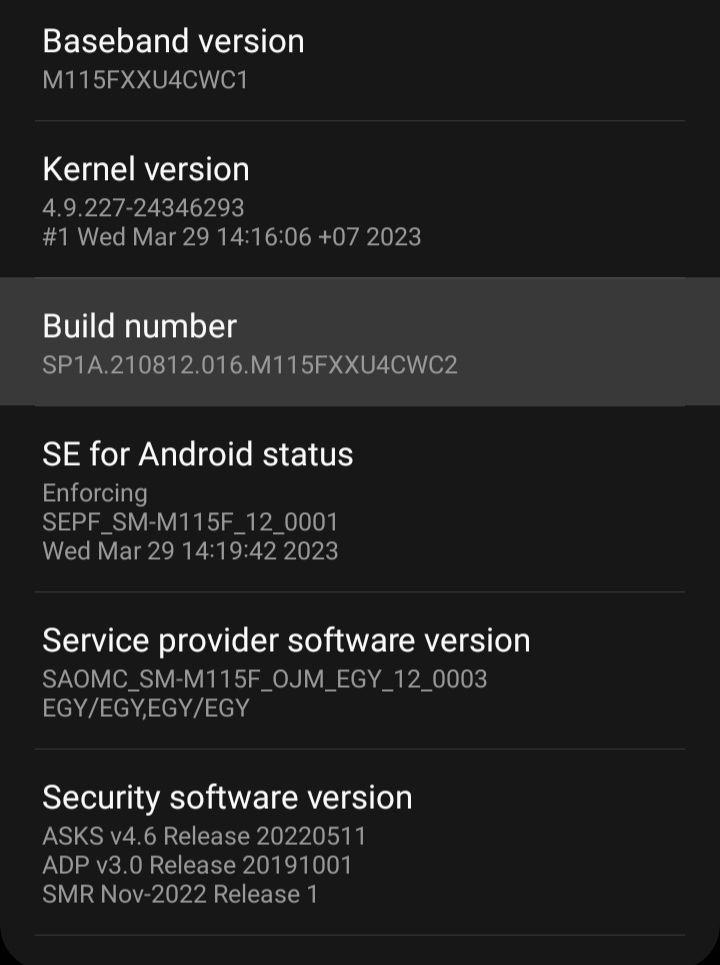
3. Tap Build number 7 times
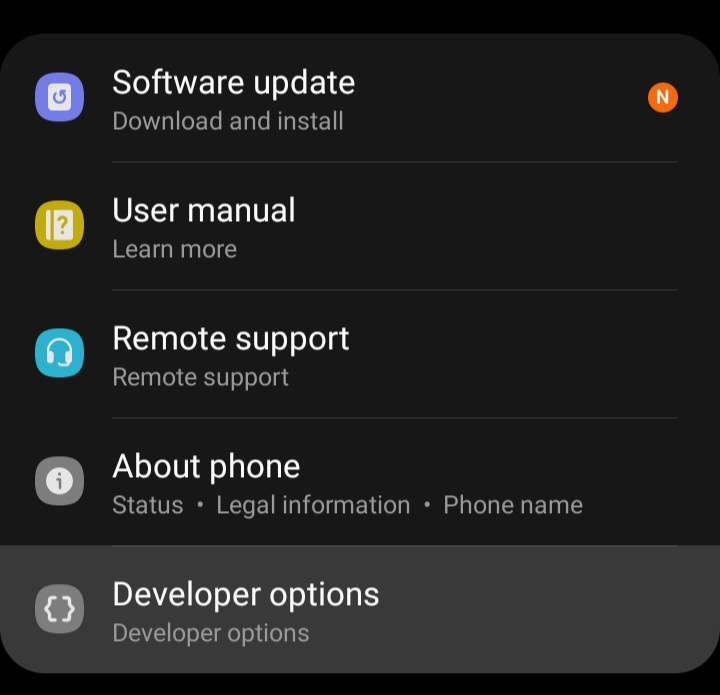
4. Open Developer options
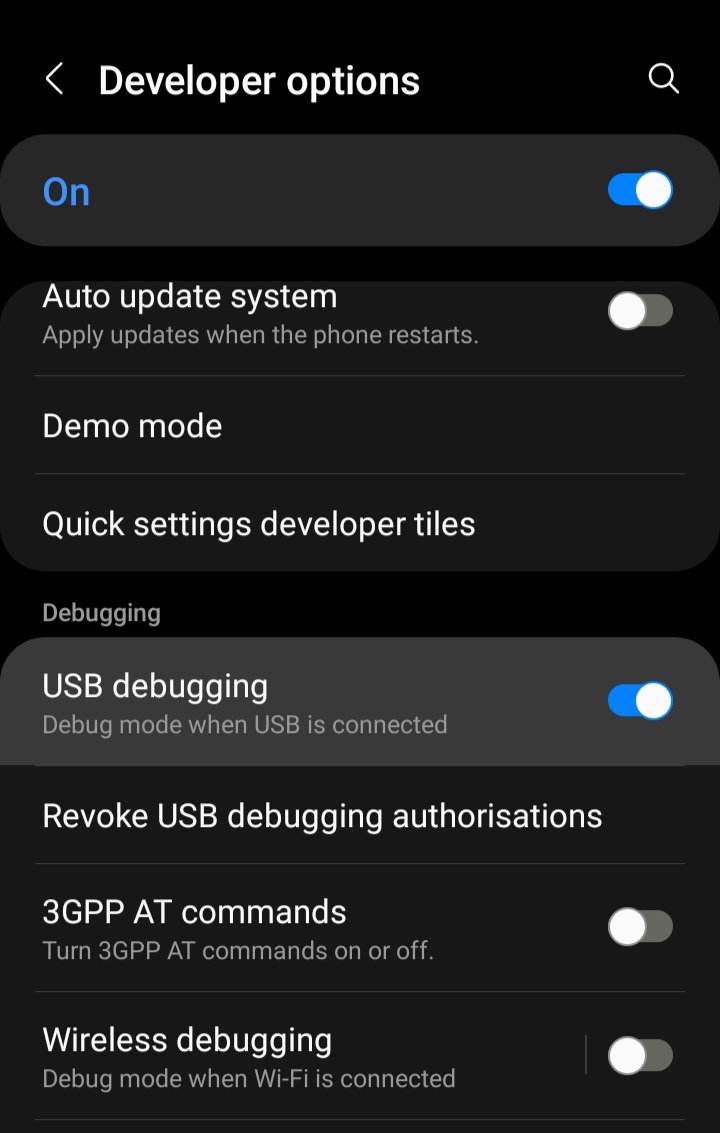
5. Toggle USB debugging ON
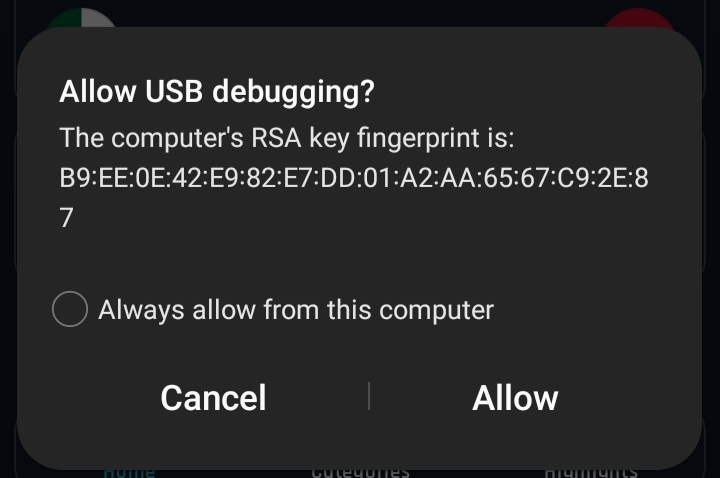
6. Allow USB Debugging Access
Tap Allow to authorize the USB connection.
🎮 Keyboard & On-Screen Controls
Once connected, enable Controls from the overlay to use your keyboard and mouse directly on the mirrored screen. Use Game Mode for pointer lock and optimized input during gaming sessions.
✦ Edit Layout — Drag, resize, and place on-screen control buttons anywhere on the screen. Arrange them to match your play style, save the layout, and use it anytime for a more comfortable and personalised control setup.
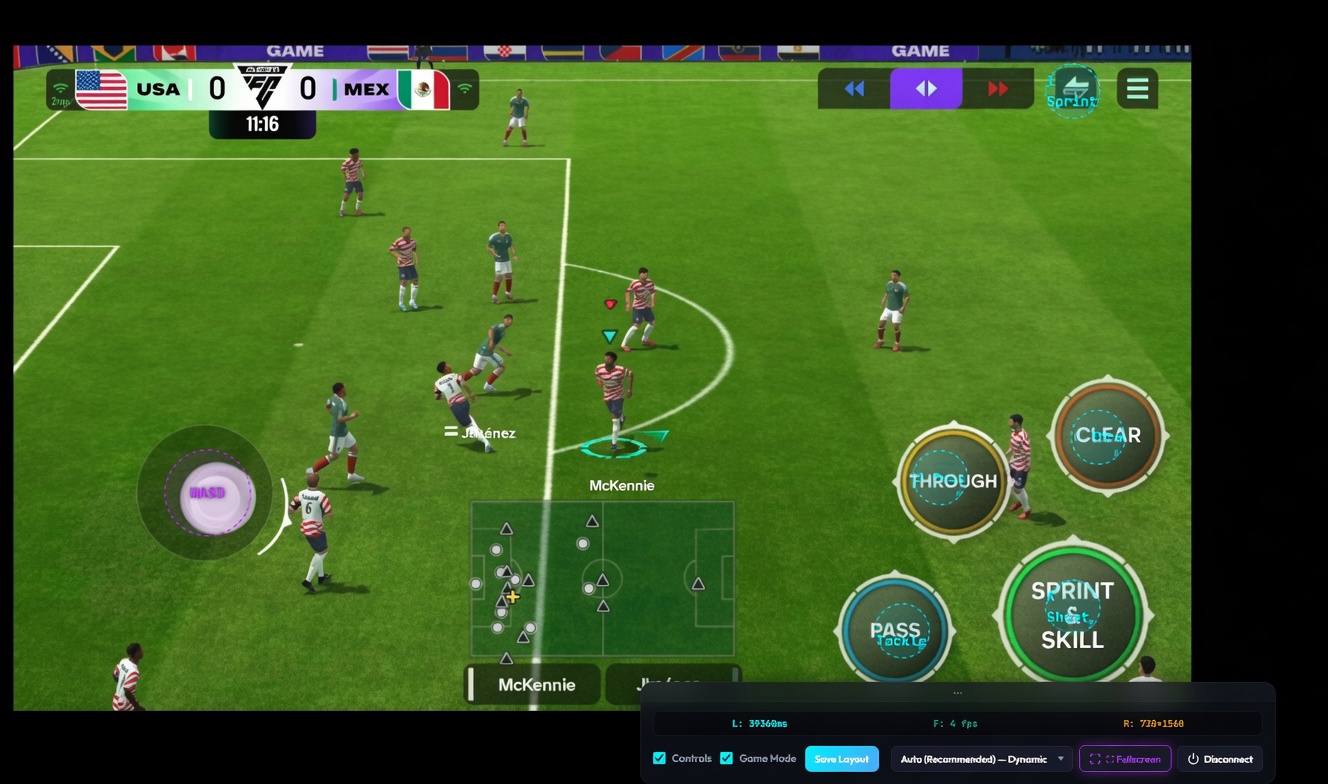
Overview of the keyboard and on-screen control layout.
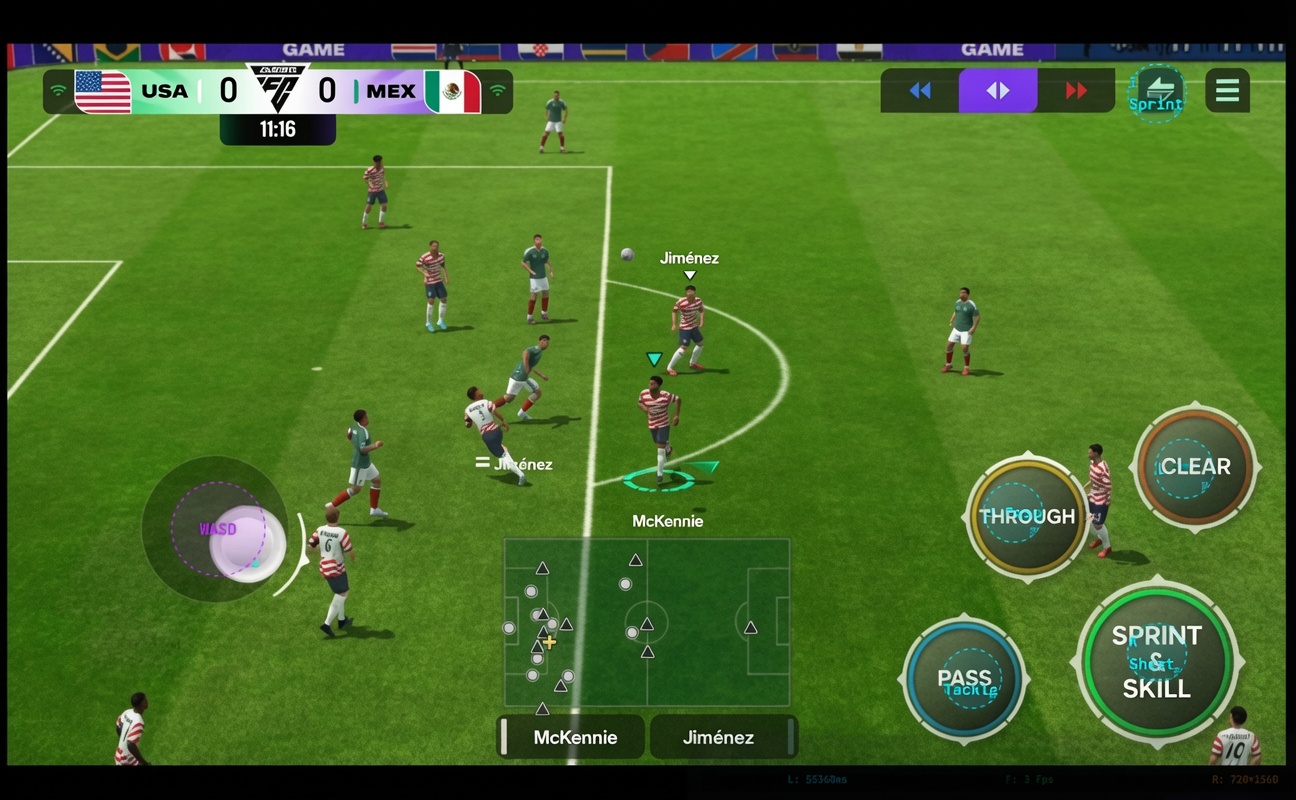
Customize the WASD controls and button positions using Edit Layout.
Mirrizo: Free Browser-Based Android Screen Mirroring
Mirrizo lets you view an Android phone on a larger display through a supported web browser. Instead of installing a separate desktop mirroring application, open Mirrizo on your PC, laptop, or compatible big-screen device, connect your phone with a USB data cable, approve the connection, and follow the instructions. It can be useful for viewing mobile apps, demonstrating a phone workflow, following tutorials, or seeing mobile gameplay on a larger screen.
Your phone continues running its apps while Mirrizo displays the screen. It does not turn a mobile game into a native PC game, and compatibility varies by setup.
What Is Mirrizo?
Mirrizo is a browser-based Android screen mirroring tool that connects a phone to a larger display through USB. Open the website on the device where you want to see the phone screen—not on the phone you want to mirror—and use a compatible browser to start the connection.
How Does Mirrizo Work?
Mirrizo uses browser features that allow a compatible desktop browser to communicate with a connected Android device. Enable Developer Options and USB debugging on your phone, connect it with a USB data cable, and approve the authorization request when Android asks. On the Mirrizo page, choose the USB connection option and complete the prompts.
The cable carries screen data directly, unlike a remote video-streaming service. Actual performance varies by setup.
Does Mirrizo Need Internet, and How Much Data Does It Use?
You need internet access to open Mirrizo and load the page and its resources. Once the page has loaded, screen data for a USB mirroring session travels through the cable rather than being continuously streamed through the internet. The USB mirroring connection itself is therefore not expected to consume internet data like a cloud-based video stream.
Background browser activity and other services may still use data. A specific figure such as “less than 1 MB per hour” should be treated as an estimate unless it has been measured across representative devices and browsers.
Mirrizo Features
- USB screen mirroring: USB is Mirrizo’s primary recommended connection method.
- Browser-based access: Use Mirrizo in a compatible browser without a separate desktop mirroring app.
- Keyboard and on-screen controls: On supported setups, use the Controls overlay to operate the mirrored phone with a keyboard and mouse.
- Game Mode: Game Mode supports input convenience during compatible gaming sessions; behavior depends on the browser and game.
- Custom control layout: Where available, move and resize on-screen buttons, then save your preferred layout.
- Fullscreen viewing: Expand the mirrored screen for demonstrations or gameplay.
How to Connect an Android Phone to Mirrizo
- Open mirrizo.com on the PC, laptop, or compatible big-screen device where you want to view your phone. Do not open it on the phone you intend to mirror.
- On Android, open Settings and go to About phone. Tap Build number seven times to enable Developer Options; names vary by device.
- Return to Settings, open Developer Options, and enable USB debugging.
- Connect the phone with a USB data cable. A charging-only cable will not work.
- Tap Allow on the USB debugging prompt only if you trust the computer.
- On the Mirrizo page, select the USB connection option and follow the instructions to start mirroring.
- Disconnect when finished, especially on a shared computer.
Follow the Mirrizo How to Use guide for more details.
Browser Compatibility and Common Issues
Mirrizo lists Google Chrome, Brave, Opera desktop, and Microsoft Edge among its supported browsers. Firefox is not supported for the current workflow. Use an up-to-date supported browser.
If the phone is not detected, check that USB debugging is enabled and that you approved the authorization prompt. Make sure the cable supports data transfer, try another USB port, and close other programs that may be using the device. If the browser cannot access USB, check its permissions and browser version. Some apps may restrict their content or interaction, so every app may not behave identically when mirrored.
Privacy and Safe Use
USB debugging gives a computer access to developer functions on your phone. Enable it only when needed and authorize trusted computers only. Avoid showing private messages, passwords, payment details, or sensitive photos on shared displays. Disconnect when finished, review your USB debugging settings, and use Mirrizo only with devices you own or have permission to access.
Frequently Asked Questions
1. Does Mirrizo Require an Internet Connection?
Internet is needed to open Mirrizo. During USB mirroring, screen data travels through the cable; browser and background activity may still use data.
2. What Is Mirrizo?
Mirrizo displays an Android phone on a larger screen through a supported browser and USB connection.
3. Is Mirrizo Free to Use?
Yes. Mirrizo is free to use for its core screen-mirroring experience.
4. Do I Need to Install Desktop Software?
No separate traditional desktop mirroring application is required. You do need a compatible browser, a data-capable USB cable, USB debugging enabled, and permission to authorize the connection.
5. Which Browsers Does Mirrizo Support?
Mirrizo lists Google Chrome, Brave, Opera desktop, and Microsoft Edge as supported browsers. Firefox is not supported for the current workflow. Use an up-to-date version for best compatibility.
6. How Do I Connect My Android Phone to My PC?
Open Mirrizo on your PC, enable USB debugging, connect your phone, approve the prompt, and select the USB connection option.
Start Mirroring with Mirrizo
Open Mirrizo in a supported browser, connect a reliable USB cable, and authorize only a trusted computer. Your phone runs its apps while Mirrizo displays the screen.