
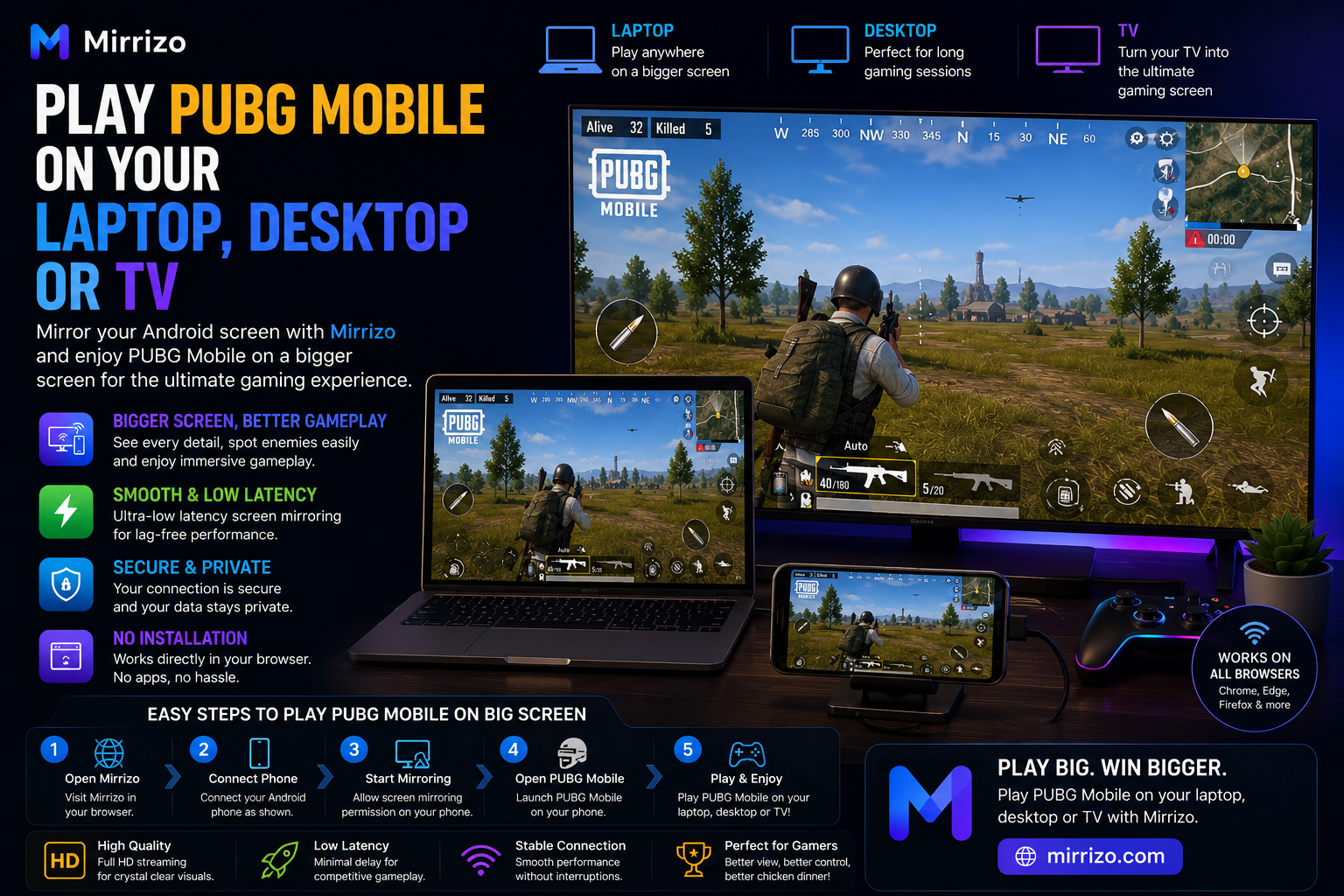
Play PUBG Mobile on Your Laptop, Desktop, or TV with Mirrizo
PUBG Mobile is designed for smartphones, but many players prefer seeing the action on a much larger screen. Whether you're spotting enemies across open fields, coordinating with teammates, or simply enjoying better visuals, playing on a laptop, desktop monitor, or TV can make the experience more immersive.
With Mirrizo, you can use screen mirroring to display your Android phone on a larger screen through a browser-based experience. Instead of squinting at a small display, you can enjoy every match with more space and better visibility.
If you're searching for play PUBG Mobile on laptop, play PUBG Mobile on desktop, screen mirroring, Android screen on PC, or mobile to PC screen share, this guide explains everything you need to know.
---
Why Play PUBG Mobile on a Bigger Screen?
A larger display doesn't change the game itself, but it can make the experience more enjoyable.
Benefits include:
- **Larger battlefield visibility**
- **More immersive gameplay**
- **Easier to follow teammates and maps**
- **Better viewing for streaming or recording**
- **Comfortable gaming sessions on a monitor or TV**
Whether you're playing Classic Mode, Team Deathmatch, or Arena, a larger screen can make long gaming sessions more comfortable.
---
Why Choose Mirrizo?
Mirrizo is designed for users who want a simple and modern screen mirroring experience.
Instead of installing complex desktop software, Mirrizo focuses on browser-based screen sharing with a clean interface.
Key Features
- Browser-based screen mirroring
- Mobile to PC screen share
- Android screen on PC
- High-quality display
- Fast setup
- Modern interface
- Great for gaming, work, education, and entertainment
---
How to Play PUBG Mobile on Your Laptop, Desktop, or TV
Follow these simple steps to start playing on a larger display.
Step 1: Open Mirrizo
Open the Mirrizo website in a supported browser on your laptop or desktop.
Step 2: Connect Your Android Phone
Follow the on-screen instructions to connect your Android device.
Step 3: Allow Screen Mirroring
Approve the required permission on your phone to begin mirroring.
Step 4: Launch PUBG Mobile
Open PUBG Mobile on your Android device.
Step 5: Enjoy the Bigger Screen
Your phone display will appear on your laptop, desktop monitor, or connected TV, allowing you to enjoy the game on a much larger screen.
---
Common Gaming Challenges
Many players experience similar issues when mirroring mobile games. Here are practical ways to improve the experience.
Lag
- Close unnecessary background apps.
- Keep your browser updated.
- Use a stable connection.
Frame Drops
- Reduce background activity on your phone.
- Avoid running multiple demanding apps simultaneously.
Audio Delay
- Restart the mirroring session if audio becomes unsynchronized.
- Verify your device's audio settings.
Connection Interruptions
- Keep your device connected throughout the session.
- Reconnect if the session is interrupted.
---
Pro Tips for the Best PUBG Mobile Experience
For smoother gameplay:
- Charge your phone before long matches.
- Close unused apps to free system resources.
- Keep your device cool during extended gaming sessions.
- Use Full Screen mode for a more immersive experience.
- Update your browser regularly for the latest compatibility improvements.
These small adjustments can improve your overall screen mirroring experience.
---
Why Browser-Based Screen Mirroring Is Popular
More players are choosing browser-based screen mirroring because it reduces setup time and keeps everything simple.
Mirrizo is suitable for users looking for:
- **Play PUBG Mobile on laptop**
- **Play PUBG Mobile on desktop**
- **Play PUBG Mobile on TV**
- **Screen mirroring**
- **Screen mirror app**
- **Mobile to PC screen share**
- **Android screen on PC**
- **Mirror phone screen in browser**
- **Cast Android to PC**
- **Online screen mirroring**
These search terms naturally align with what players look for when they want to enjoy mobile games on a larger display.
---
Frequently Asked Questions
Can I play PUBG Mobile on my laptop with Mirrizo?
Yes. Mirrizo lets you mirror your Android phone to your laptop so you can view PUBG Mobile on a larger screen.
Can I mirror PUBG Mobile to my TV?
Yes. If your TV supports displaying the mirrored output from your setup, Mirrizo can be part of that viewing experience.
Do I need to root my Android phone?
No. Mirrizo is designed to work without requiring root access.
Is Mirrizo only for gaming?
No. Besides gaming, Mirrizo is useful for presentations, online classes, app testing, technical support, demonstrations, and media viewing.
---
Final Thoughts
If you want to play PUBG Mobile on your laptop, desktop, or TV, Mirrizo offers a simple browser-based screen mirroring experience that helps you enjoy your favorite mobile game on a larger display.
Whether you're playing with friends, streaming your gameplay, or simply want a more immersive view, Mirrizo provides an easy way to bring your Android screen to a bigger screen without unnecessary complexity.