Play Garena Free Fire on Your Laptop or Desktop with Mirrizo
Garena Free Fire is one of the world's most popular mobile battle royale games. While it's designed for smartphones, many players enjoy viewing the game on a larger screen for a more immersive experience.
With Mirrizo, you can mirror your Android phone to your laptop or desktop through a browser-based screen mirroring experience. Whether you're watching your gameplay, sharing matches with friends, or simply enjoying a bigger display, Mirrizo helps bring your mobile screen to your computer with a clean and modern setup.
If you're searching for play Garena Free Fire on laptop, play Free Fire on desktop, screen mirroring, Android screen on PC, or mobile to PC screen share, this guide will help you get started.
Why Play Garena Free Fire on a Bigger Screen?
Free Fire is fast-paced, and every second matters. A larger display makes it easier to enjoy the game's visuals and follow the action.
Some benefits include:
- A larger view of the battlefield
- More comfortable gaming sessions
- Better visibility during intense matches
- A great way to share gameplay with friends
- An immersive experience on a laptop or desktop monitor
Many players simply enjoy seeing the game on a bigger screen without changing how they play on their phone.
Why Choose Mirrizo?
Mirrizo is designed to make screen mirroring simple.
Instead of downloading large desktop applications, you can use a browser-based solution that focuses on ease of use and a clean experience.
Key Features
- Browser-based screen mirroring
- Mobile to PC screen share
- Android screen on PC
- High-quality display
- Fast setup
- Modern interface
- Ideal for gaming, learning, presentations, and entertainment
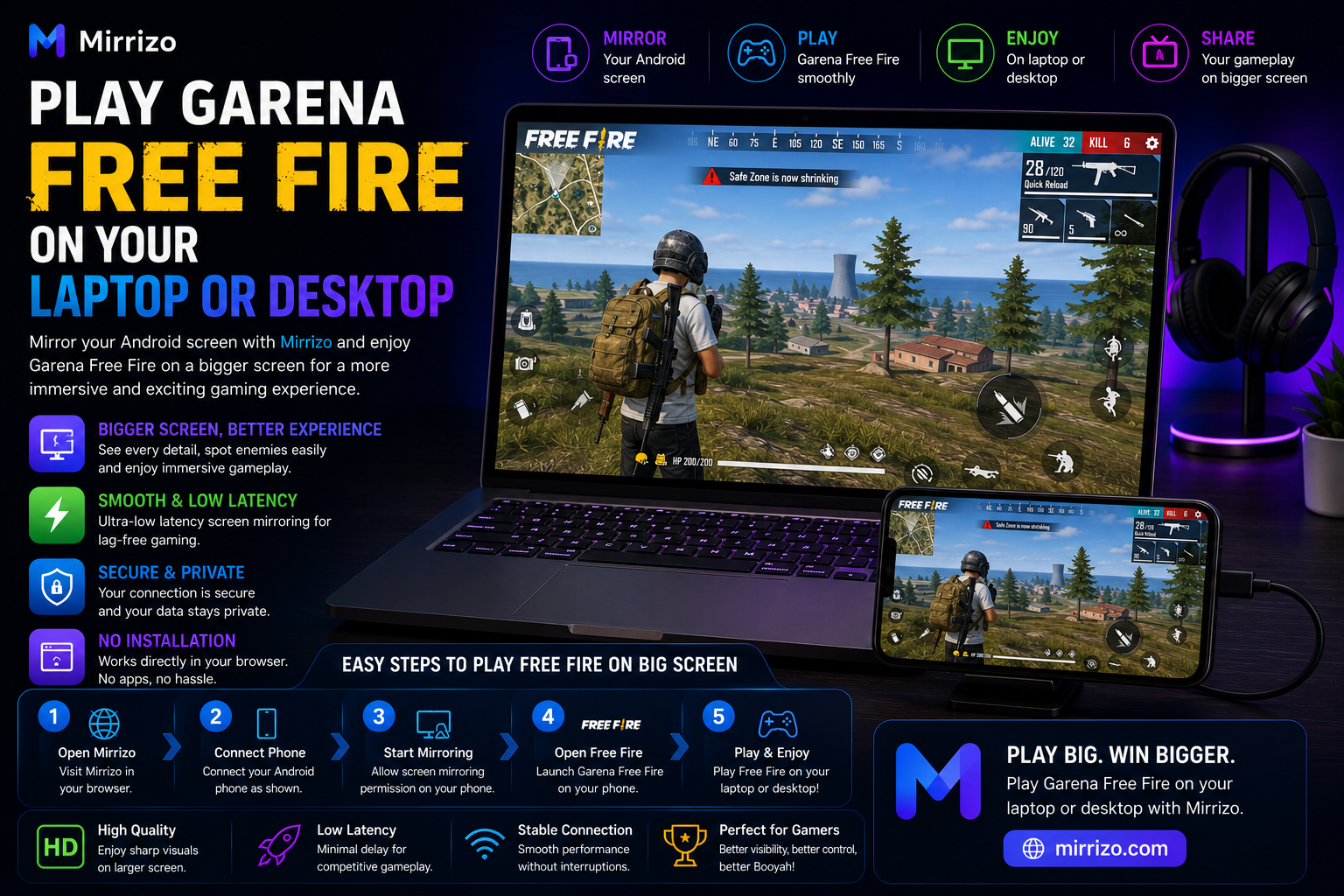
How to Play Garena Free Fire on Your Laptop or Desktop
Follow these simple steps to mirror your phone screen.
Step 1: Open Mirrizo
Visit the Mirrizo website in a supported web browser on your laptop or desktop.
Step 2: Connect Your Android Phone
Follow the connection instructions shown on the screen.
Step 3: Allow Screen Mirroring
Approve the required permission on your Android device.
Step 4: Launch Garena Free Fire
Open Garena Free Fire on your phone after the connection is established.
Step 5: Enjoy the Bigger Screen
Your phone display will appear on your computer, allowing you to enjoy Free Fire on a larger screen while continuing to play on your mobile device.
Common Challenges and Practical Solutions
When mirroring games, users sometimes experience issues that can affect the viewing experience.
Lag
- Close unused background applications.
- Keep your browser updated.
- Use a stable connection.
Frame Drops
- Reduce background activity on your phone.
- Avoid running other demanding apps during gameplay.
Audio Delay
- Restart the mirroring session if needed.
- Check your audio settings on both devices.
Connection Stability
- Keep your phone connected throughout the session.
- Reconnect if the session is interrupted.
Pro Tips for a Better Free Fire Experience
To get the best results:
- Fully charge your phone before long gaming sessions.
- Close unnecessary apps to free up resources.
- Use Full Screen mode for maximum immersion.
- Keep your device cool during extended play.
- Update your browser regularly for the latest compatibility improvements.
These simple habits can help create a smoother screen mirroring experience.
Why Browser-Based Screen Mirroring Is Growing
Many users now prefer browser-based tools because they are quick to access and don't require complicated installations.
Mirrizo naturally supports search topics such as:
- Play Garena Free Fire on laptop
- Play Free Fire on desktop
- Screen mirroring
- Screen mirror app
- Mobile to PC screen share
- Android screen on PC
- Mirror phone screen in browser
- Cast Android to PC
- Online screen mirroring
These keywords are integrated naturally throughout this guide to match the way users search for larger-screen mobile gaming.
Frequently Asked Questions
Can I play Garena Free Fire on my laptop with Mirrizo?
Yes. Mirrizo lets you mirror your Android phone to your laptop so you can enjoy Free Fire on a larger display.
Do I need to root my Android phone?
No. Mirrizo is designed to work without requiring root access.
Can I mirror Free Fire to a desktop monitor?
Yes. You can display your Android phone on a desktop monitor using Mirrizo's browser-based screen mirroring experience.
Is Mirrizo only useful for gaming?
No. Mirrizo is also useful for presentations, online learning, app demonstrations, technical support, media viewing, and more.
Final Thoughts
If you want to play Garena Free Fire on your laptop or desktop, Mirrizo provides a simple browser-based screen mirroring experience that makes it easy to enjoy the game on a larger display.
Whether you're sharing gameplay, watching your matches, creating content, or simply enjoying Free Fire on a bigger screen, Mirrizo offers a clean and modern way to bring your Android screen to your computer