How to Use NVIDIA DLSS Technology to Improve Gaming Performance
By Sabz
Modern PC games can look incredible, but high resolutions, ray tracing, and detailed graphics can reduce frame rates. NVIDIA Deep Learning Super Sampling (DLSS) is a collection of AI-powered graphics technologies designed to improve performance, image quality, or both on supported GeForce RTX graphics cards. It helps produce the final image with a lower GPU workload in supported games.
DLSS is not a universal performance switch. Available features depend on your graphics card, the game, and your drivers. Here is how to understand and use it.
What Is NVIDIA DLSS?
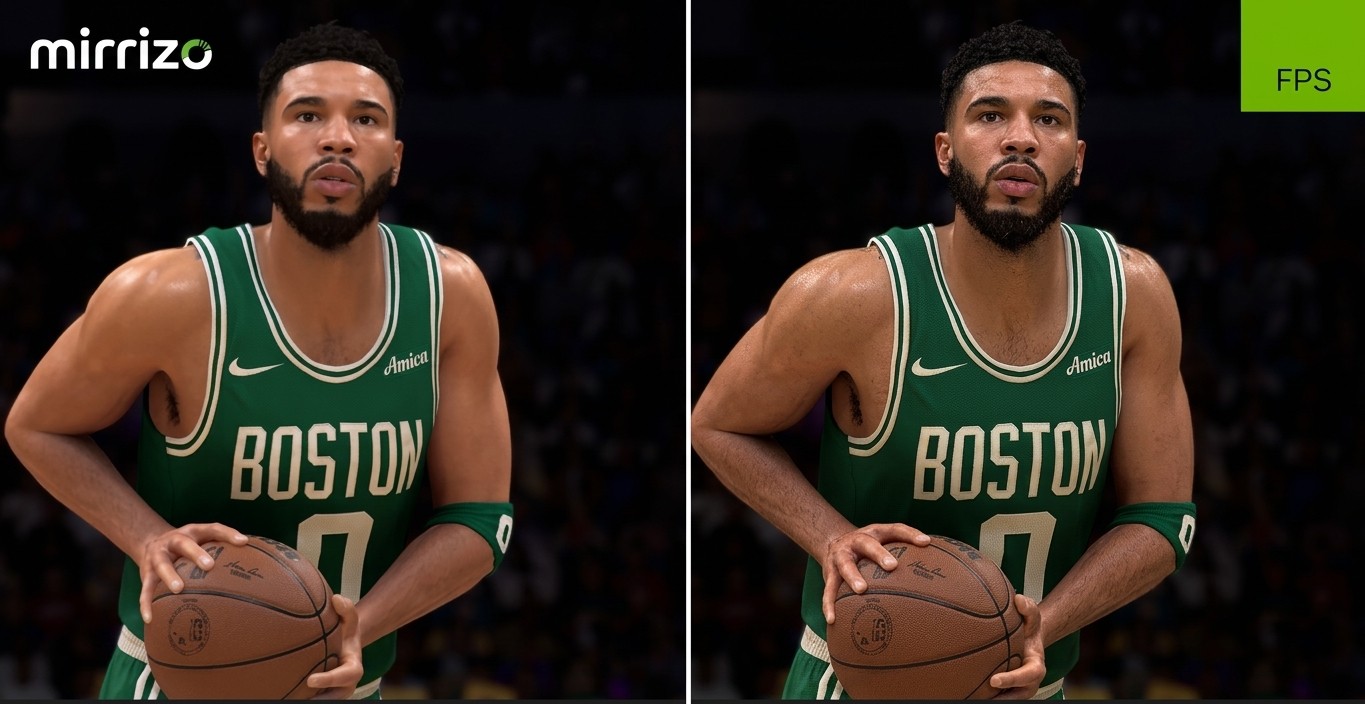
DLSS Super Resolution renders a game at a lower internal resolution and uses AI, motion data, and information from previous frames to reconstruct an image at your display resolution. This can reduce GPU workload while maintaining good visual quality.
Other features have different purposes. Frame Generation creates additional frames between traditionally rendered frames. Ray Reconstruction uses AI to improve ray-traced lighting and reflections in supported games. Deep Learning Anti-Aliasing (DLAA) prioritises image quality at native resolution rather than maximising frame rates. DLSS 5 adds developer-tuned 3D-Guided Neural Rendering for lighting and materials on RTX 50 Series, where supported.
What Do You Need to Use DLSS?
You need a compatible GeForce RTX graphics card, a supported game, and current NVIDIA drivers. DLSS Super Resolution and DLAA work on RTX 20, 30, 40, and 50 Series GPUs in compatible games. Ray Reconstruction also supports these RTX generations in supported titles. Frame Generation requires RTX 40 or RTX 50 Series, while Multi Frame Generation and Dynamic Multi Frame Generation are RTX 50 Series features.
An RTX card does not guarantee that every game offers every option. Check the game's graphics menu and the supported-games list if a feature is missing.
How to Enable DLSS in a Game
- Update your graphics driver with the NVIDIA app or official driver installer.
- Install or update the NVIDIA app if you want to manage supported DLSS overrides.
- Launch a compatible game and open Settings, Graphics, or Video.
- Find NVIDIA DLSS, DLSS Super Resolution, or a similar upscaling option. Labels vary between games.
- Enable Super Resolution and choose a mode. Quality prioritises image clarity, Balanced offers a compromise, and Performance lowers the internal rendering resolution further to improve speed. Some games also offer Ultra Performance.
- Apply the changes and restart the game if prompted. Compare frame rate and image quality in the same scene.
Try Quality first at 1440p or 4K. If performance remains too low, test Balanced or Performance. At 1080p, aggressive modes can look softer, so compare the result instead of assuming the fastest mode is best.
How to Use Frame Generation and Ray Reconstruction
If your game and GPU support Frame Generation, enable it in the graphics settings. It can increase displayed frame rates, but generated frames are not the same as frames rendered directly by the game. Responsiveness still depends on the underlying frame rate and system latency. NVIDIA Reflex, where available, can help reduce latency.
For a supported ray-traced game, Ray Reconstruction can replace traditional denoising with an AI-based approach. Results vary by game. DLAA is different: it targets image quality at native resolution and may use more GPU resources instead of increasing performance.
Can the NVIDIA App Upgrade DLSS?
The NVIDIA app offers DLSS overrides for selected games. Open Graphics, choose Program Settings, select a supported title, and look in Driver Settings. Depending on the game and GPU, available options may update the Super Resolution model, upgrade Frame Generation, or enable a compatible Multi Frame Generation mode.
Overrides do not add every DLSS feature to every game. The relevant feature generally must also be enabled in the game's own settings. If an override causes glitches or worse image quality, restore the default and compare again.
Troubleshooting Common DLSS Problems
If DLSS does not appear, confirm the game supports it, update your driver, and check that the game is using your RTX GPU rather than integrated graphics. Laptop users should check which GPU is selected. Updating the game and restarting after driver changes may also help.
If the image looks soft, try a higher-quality mode. If performance gets worse, check for CPU limits and whether ray tracing is enabled. Frame Generation can raise displayed FPS but cannot fix every bottleneck. NVIDIA DLSS does not support GTX cards or AMD and Intel GPUs; those users need other upscaling technologies.
Frequently Asked Questions
1. Is NVIDIA DLSS Free?
DLSS is a feature included in supported games for compatible GeForce RTX graphics cards. There is no separate DLSS subscription, although the game and hardware may cost money.
2. Does DLSS Work on Every Game?
No. Developers must integrate DLSS support, or a compatible NVIDIA app override must be available. Options vary by title.
3. Which RTX Cards Support DLSS?
Super Resolution and DLAA support RTX 20, 30, 40, and 50 Series GPUs in compatible games. Newer Frame Generation features require newer generations.
4. Which DLSS Mode Should I Choose?
Try Quality for image clarity, Balanced for a middle ground, and Performance when you need more FPS. Compare at your display resolution.
5. Does Frame Generation Reduce Input Lag?
It increases displayed frame rates, but does not automatically improve responsiveness. Base frame rate and latency settings still matter; NVIDIA Reflex can help in supported games.
6. Can I Enable DLSS Without an RTX GPU?
No. NVIDIA DLSS requires compatible GeForce RTX hardware. Other graphics cards may support different upscaling technologies, but they are not NVIDIA DLSS.
Conclusion
DLSS can help supported games run at higher frame rates or deliver improved image quality, but the right settings depend on your GPU, game, and display. Update your drivers, enable DLSS in a compatible game's graphics menu, and compare Quality, Balanced, and Performance modes. Use Frame Generation, Ray Reconstruction, DLAA, and NVIDIA app overrides only when supported. Testing a few settings is the best way to balance clarity, speed, and responsiveness.