
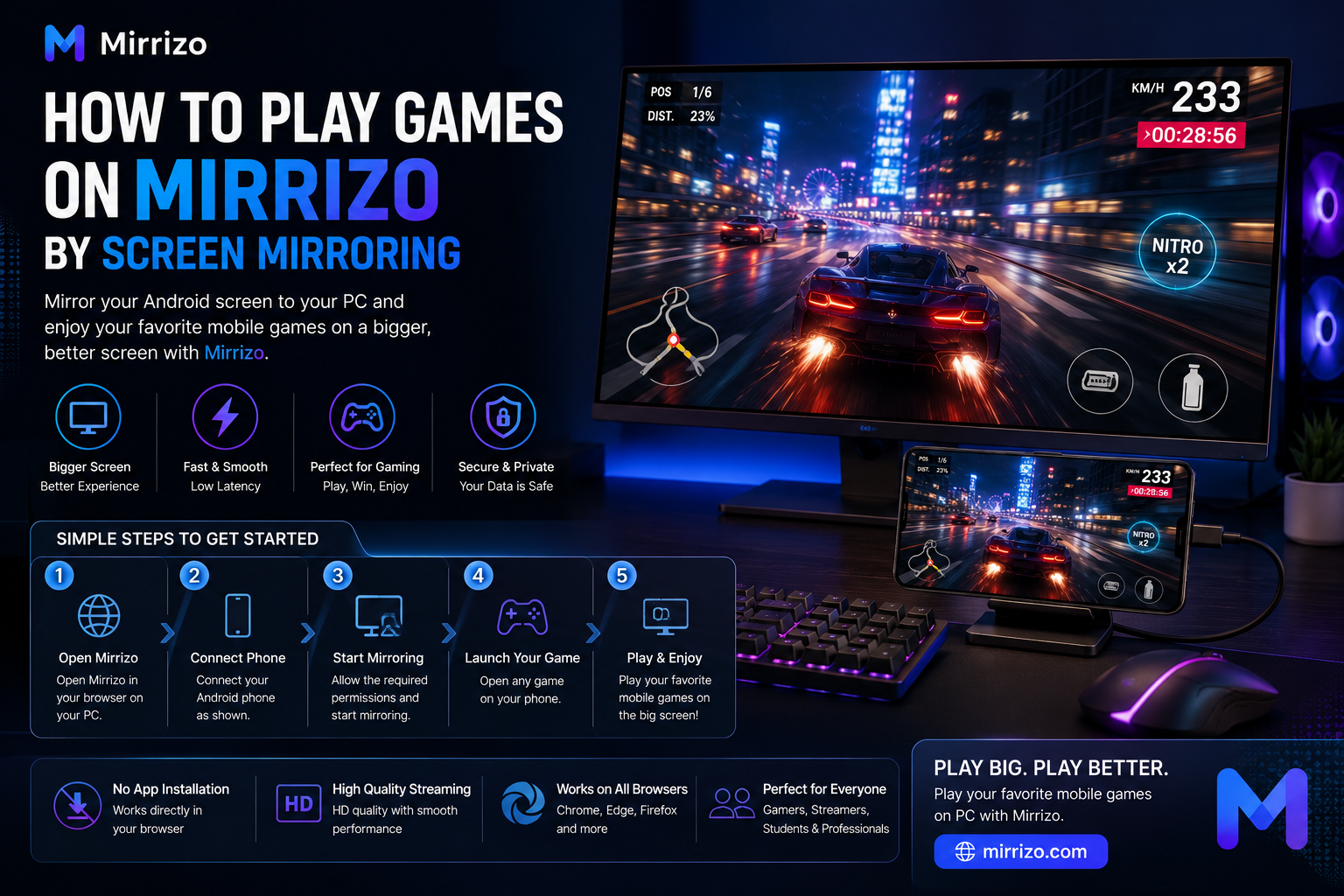
How to Play Games on Mirrizo by Screen Mirroring
Playing mobile games on a larger screen can completely change the experience. Whether you're racing, battling, exploring open worlds, or competing online, a bigger display makes every detail easier to see and every session more enjoyable.
With Mirrizo, you can use screen mirroring to view your Android phone on your PC through a clean, browser-based experience. Instead of staring at a small phone screen, you can enjoy your favorite mobile games on a much larger display.
If you've been looking for an easy way to play mobile games on PC, mirror your Android screen to a computer, or find a modern screen mirror app, this guide will show you everything you need to know.
---
Why Play Mobile Games on a PC?
Although mobile games are designed for smartphones, many players prefer viewing them on a larger monitor.
A bigger display offers several advantages:
- **Better visibility** during fast-paced gameplay
- **Improved comfort** during long gaming sessions
- **Easier streaming** and content creation
- **Better presentations** for tutorials and demonstrations
- **A more immersive gaming experience**
Whether you're playing action, racing, strategy, RPG, sports, or casual games, screen mirroring makes it easier to enjoy every detail.
---
Why Choose Mirrizo for Screen Mirroring?
Mirrizo is built around one simple goal:
Make mobile-to-PC screen sharing easy.
Instead of downloading complicated desktop software, Mirrizo focuses on a clean browser-first experience that is simple enough for beginners while still useful for developers, creators, and gamers.
Key Features
- Browser-based screen mirroring
- Mobile to PC screen sharing
- Fast connection
- Modern and clean interface
- Android screen on PC
- High-quality display
- Designed for gaming, work, education, and entertainment
---
How to Play Games on Mirrizo by Screen Mirroring
Getting started is simple.
Step 1: Open Mirrizo
Visit the Mirrizo website from your PC using a supported browser.
Step 2: Connect Your Android Device
Connect your Android phone and follow the on-screen instructions to establish the screen mirroring session.
Step 3: Allow Screen Mirroring
Grant the necessary permissions on your Android device when prompted.
Step 4: Launch Your Favorite Game
Open any mobile game on your phone.
Your phone screen will now appear on your PC through Mirrizo.
Step 5: Enjoy Gaming on a Bigger Screen
Sit back and enjoy your favorite mobile games on your computer display while keeping everything running directly from your phone.
---
Common Problems and How to Avoid Them
A smooth gaming experience depends on a few simple factors.
Lag or Slow Performance
If the mirrored screen feels delayed:
- Close unnecessary apps running in the background.
- Keep your browser updated.
- Use a stable connection.
Frame Drops
If gameplay looks choppy:
- Reduce background activity on your phone.
- Avoid running multiple heavy apps at the same time.
Audio Sync Issues
If the sound feels out of sync:
- Refresh the mirroring session.
- Check your device's audio settings.
Connection Problems
If your phone disconnects:
- Reconnect the device.
- Ensure the connection remains stable throughout your gaming session.
---
Best Use Cases for Mirrizo
Mirrizo isn't just for gaming.
People also use it for:
- App development
- Software testing
- Online teaching
- Technical support
- Live presentations
- Product demonstrations
- Watching videos
- Sharing photos
- Remote assistance
---
Pro Tips for the Best Gaming Experience
To get the most out of Mirrizo, follow these tips:
- Keep your phone battery charged before long gaming sessions.
- Close unused apps to free up system resources.
- Use Full Screen mode for a more immersive experience.
- Keep your browser updated for the latest performance improvements.
- Place your phone where it stays cool during extended gameplay.
Small improvements like these can noticeably improve your overall screen mirroring experience.
---
Why Gamers Choose Browser-Based Screen Mirroring
Modern gamers increasingly prefer browser-based screen sharing because it removes unnecessary setup and keeps the experience straightforward.
Instead of installing multiple programs, you simply open the browser, connect your device, and start playing.
This approach is especially useful for users searching for:
- **Screen Mirroring**
- **Mobile to PC Screen Share**
- **Android Screen on PC**
- **Screen Mirror App**
- **Mirror Phone Screen in Browser**
- **Cast Android to PC**
Mirrizo brings these capabilities together in one clean experience.
---
Frequently Asked Questions
Can I play mobile games on my PC using Mirrizo?
Yes. Mirrizo mirrors your Android screen to your PC, allowing you to enjoy mobile games on a larger display.
Is Mirrizo a screen mirror app?
Mirrizo is a browser-based screen mirroring platform designed for simple mobile-to-PC screen sharing.
Do I need to root my Android phone?
No. Mirrizo is designed to work without requiring your Android device to be rooted.
What devices can I use with Mirrizo?
Mirrizo is designed for Android devices and lets you display your phone screen on a PC through a supported web browser.
---
Final Thoughts
If you're looking for a modern way to play games on your PC through screen mirroring, Mirrizo offers a clean, browser-first solution that keeps the process simple.
Whether you're gaming, creating tutorials, testing apps, or presenting your screen, Mirrizo helps you enjoy your Android device on a larger display without unnecessary complexity.
Ready to experience mobile gaming on a bigger screen? Visit Mirrizo and discover how simple browser-based screen mirroring can be.